10 Best Free Video Compressors of 2026 (Online - Desktop)

On this page
Trying to email a video that’s too big, upload a clip faster, or claw back disk space? Free video compressors can cut a file to a fraction of its size with little visible quality loss. The catch is that “free” means something different at every tool: some cap you at 500MB, some stamp a watermark on the result, and some are genuinely free with no strings.
This guide compares 10 free video compressors, 5 online and 5 desktop, on exactly those terms: real file limits, watermark policies, and what each is actually good at. If the file you are shrinking is a screen recording, ScreenApp’s video compressor handles that case directly in the browser; the list below covers everything else.
Best online: FreeConvert. A 1GB free limit, no watermark, no install.
Best desktop: HandBrake. Open source, no limits, the most control you can get for free.
Simplest possible: YouCompress. Upload, compress, download, done.
For screen recordings: ScreenApp's compressor, built for exactly that file type.
Free Video Compressors Compared at a Glance
| Tool | Type | Free limit | Watermark on free | Best for |
|---|---|---|---|---|
| FreeConvert | Online | 1GB per file | No | Larger files without installing anything |
| Clideo | Online | 500MB, 720p exports | Yes | Quick jobs where the watermark does not matter |
| VEED.IO | Online | Limited free exports | Yes, on free exports | Creators who also want editing and subtitles |
| Media.io | Online | Small free allowance | Varies by tool | Occasional multi-format conversions |
| YouCompress | Online | No stated cap, slower on big files | No | The simplest one-off compression |
| HandBrake | Desktop | None | No | Full control, large files, batches |
| VLC | Desktop | None | No | Occasional compression with software you already have |
| Shotcut | Desktop | None | No | Editing first, compressing on export |
| Avidemux | Desktop | None | No | Quick cuts and re-encodes |
| Freemake | Desktop, Windows | Free version limited | Yes, on free output | Only if the watermark is acceptable |
Free limits and watermark policies were checked against each vendor’s site in October 2026; these change often, so confirm before a deadline matters.
Jump to a tool
Online vs Desktop Video Compressors: Which is Right for You?
Choosing between online and desktop video compressors depends on your specific needs, file sizes, and security requirements.
Online Video Compressors
Advantages
- No installation required
- Works on any device with internet
- Fast for small to medium files
- Usually free with basic features
- Automatic updates
Limitations
- File size limits (usually 1GB max)
- Requires stable internet connection
- Privacy concerns with sensitive content
- Limited control over compression settings
- Upload/download times
Best for: Quick compression of personal videos, social media content, and files under 1GB.
Desktop Video Compressors
Advantages
- No file size limits
- Advanced compression controls
- Batch processing capabilities
- Works offline
- Complete privacy and security
Limitations
- Requires software installation
- Can be complex for beginners
- Uses computer resources during compression
- Platform-specific (Windows, Mac, Linux)
- Manual updates needed
Best for: Large files, professional projects, batch processing, and users who need maximum control.
Quick Decision Guide
Email Attachments
Use: Online compressor
Files are usually small and need quick processing.
Large Project Files
Use: Desktop software
Better handling of 2GB+ files with quality control.
Social Media
Use: Online compressor
Fast and convenient for quick social uploads.
Sensitive Content
Use: Desktop software
Keep private videos on your own device.
According to Statista research, video content accounts for over 80% of all internet traffic, which is why efficient compression matters to content creators and businesses alike.
The 10 Best Free Video Compressors, Ranked
Online tools
1. FreeConvert
The 1GB free limit nobody else matches online
FreeConvert's free tier accepts files up to 1GB, roughly double what most online rivals allow, and its output carries no watermark. You get target-size compression (tell it the MB you need), format conversion across 300+ types, and cloud import.
The trade-offs are speed on big files and a paywall on the advanced codec settings.
Pros
- •1GB free limit, verified October 2026
- •No watermark on output
- •Compress-to-target-size option
- •Cloud storage import
Cons
- •Slow on files near the limit
- •Advanced settings are paid
- •Ads on the free site
Best for
Files between 500MB and 1GB that would be rejected everywhere else online.
Verdict: the default online pick; start here unless your file is bigger than 1GB.
2. Clideo
Easy, polished, and watermarked on free
Clideo is the easiest interface in this list and part of a wider toolkit of trims, merges and resizes. The free tier's fine print matters though: files cap at 500MB, exports at 720p, and the result carries a Clideo watermark that only the paid plan removes.
For a draft or a file nobody else will see, that is fine. For anything published, budget for the subscription or pick FreeConvert.
Pros
- •Genuinely beginner-friendly
- •Whole editing toolkit in one place
- •Works well on phones
Cons
- •Watermark on every free export
- •500MB cap and 720p output on free
- •Fewer format options than FreeConvert
Best for
Quick personal jobs where a watermark is acceptable.
Verdict: lovely to use, but the free tier is a preview of the paid product.
3. VEED.IO
An online editor that also compresses
VEED.IO is a browser video editor first and a compressor second, which is exactly right if your compression step is one part of a subtitle-trim-export workflow. Free exports are limited and watermarked, so treat the free tier as a trial of the editor rather than a free compressor.
If compression is all you need, the dedicated tools above do it with fewer strings.
Pros
- •Editing, subtitles and compression in one pass
- •Export presets tuned per social platform
- •No install
Cons
- •Watermark on free exports
- •Free limits are tight
- •Overkill for compress-only jobs
Best for
Creators who are editing anyway and want one tool for the whole pass.
Verdict: pick it for the editor; the compression comes along for the ride.
4. Media.io
The multi-format utility drawer
Media.io (by Wondershare) is a general conversion suite with a competent compressor inside. Its strength is format breadth: if the thing you are shrinking is an unusual container, it is more likely to accept it than the slimmer tools.
The free allowance is small and the site steers you toward the paid plan quickly, so it earns a place for occasional odd jobs rather than daily use.
Pros
- •Accepts formats the others reject
- •Clean, modern interface
- •Useful companion AI tools
Cons
- •Small free allowance
- •Persistent upsells
- •Speed is unremarkable
Best for
Occasional conversions of unusual formats.
Verdict: a utility drawer, not a daily driver.
5. YouCompress
Upload, compress, download, nothing else
YouCompress is the minimalist of the group: no account, no settings, no watermark. Upload, let it pick the compression, download the result. It publishes no hard size cap, but large files get slow, so keep it for everyday clips.
The lack of controls is the point and the limitation: you cannot trade quality against size, you take what it gives.
Pros
- •Zero setup, zero account
- •No watermark
- •Handles the common formats
Cons
- •No quality or size controls
- •Slow on large files
- •One file at a time
Best for
The fastest possible route for a small, ordinary file.
Verdict: the tool to send to a relative who just needs the video smaller.
Desktop tools
6. HandBrake
The free desktop standard, no limits anywhere
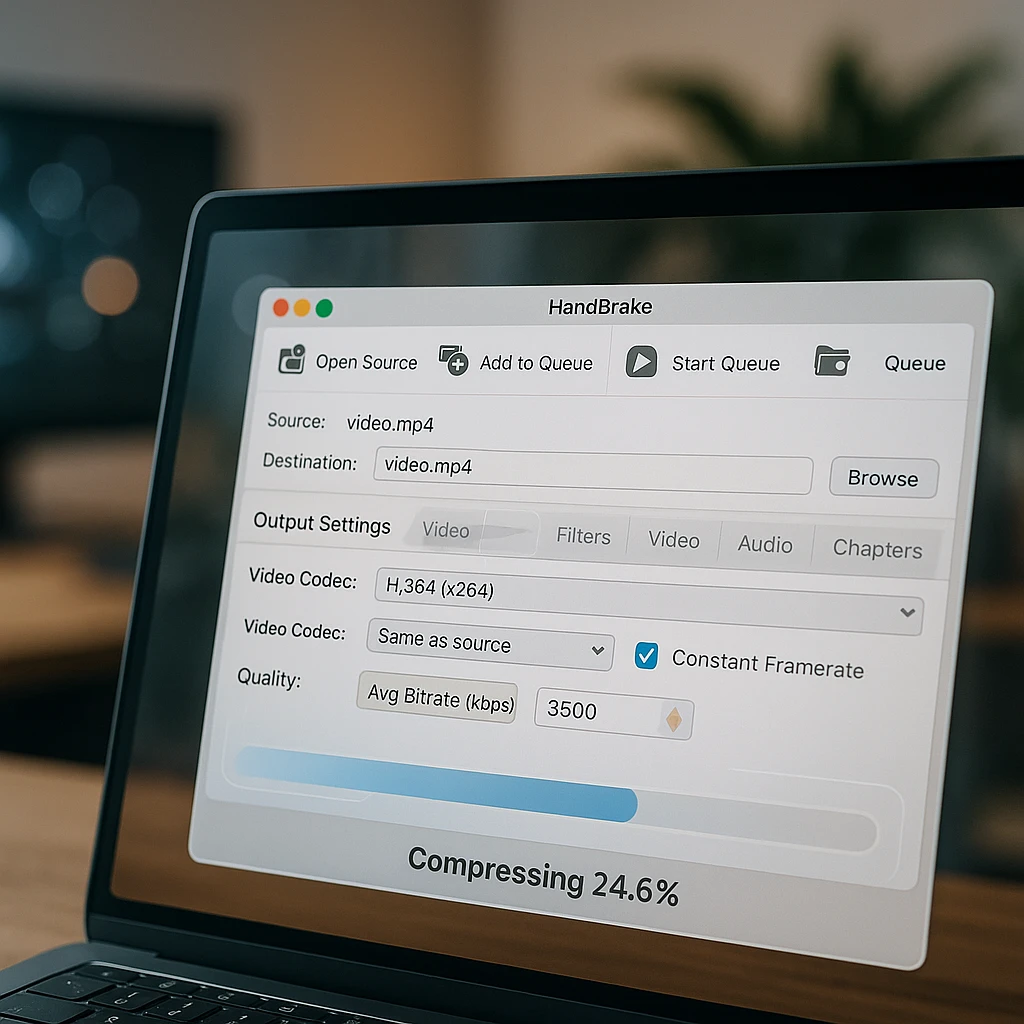
HandBrake is the tool the rest of this list is measured against: a free, open-source transcoder with professional-grade control over codec, bitrate, resolution and quality, no file size limits, and a batch queue. The price is a learning curve; the presets flatten most of it.
If your file is over 1GB, private, or part of a recurring workflow, stop reading and install this one.
Pros
- •Completely free, open source, no watermark ever
- •Handles any size, including 10GB+ files
- •Presets make it usable in two clicks
- •Batch processing and an active community
Cons
- •Interface intimidates on first open
- •Encodes take real time on long videos
- •No editing, strictly conversion
Best for
Large files, private files, batches, and anyone who compresses more than once a month.
Verdict: the right answer to most compression problems; everything online is a convenience layered over what this does properly.
7. VLC Media Player
The converter hiding in your media player
VLC's Convert/Save feature (Media menu on Windows, File menu on Mac) re-encodes any video it can play, which is essentially everything. Pick an H.264 profile, set a lower bitrate, and you have a smaller file with no new software installed.
It is a manual, one-file-at-a-time process with none of HandBrake's finesse, but for occasional use with a player you already have, that hardly matters.
Pros
- •Probably already on your computer
- •Free, open source, no watermark
- •Plays and converts virtually any format
Cons
- •Clunky multi-step workflow
- •No batch mode
- •Limited quality control
Best for
Occasional compression without installing anything new.
Verdict: not the best converter, but the best one you already own.
8. Shotcut
Compress on export from a real editor
Shotcut is a free, open-source video editor whose export panel doubles as a capable compressor: choose a preset or dial in codec and bitrate as you export your edit. If your video needs a trim or caption anyway, compressing in the same pass beats a second tool.
As a pure compressor it is a heavier install than the job needs.
Pros
- •Full editor with no watermark or fees
- •Fine-grained export control
- •Active development
Cons
- •Big install for compression alone
- •Editor learning curve
- •Export settings assume some codec knowledge
Best for
People who edit and compress as one step.
Verdict: the editor route: right when compression is the last step of an edit, not the whole job.
9. Avidemux
Quick cuts and re-encodes, nothing fancy
Avidemux does three things: cut, filter, re-encode. Its spare interface makes a simple compression (open file, pick codec, set quality, save) faster than firing up a full editor, and it is light enough for old hardware.
Development moves slowly and the interface shows its age, but it keeps working.
Pros
- •Very light on system resources
- •Simple jobs are genuinely quick
- •Free and open source
Cons
- •Dated interface
- •No batch queue worth the name
- •Occasional format quirks
Best for
Quick single-file re-encodes on modest hardware.
Verdict: a pocketknife next to HandBrake's workbench; handy, limited.
10. Freemake Video Converter
Friendly interface, watermarked output
Freemake earns its place with the friendliest interface of the desktop tools, and loses most of it in the fine print: the free version stamps Freemake branding on your output, limits conversion speed, and withholds full HD export. Removing all that means paying.
We keep it listed because people search for it, and the honest guidance is: if a watermark on every video is unacceptable, use HandBrake; if you want easy, the online tools above are easier.
Pros
- •Genuinely simple preset-driven workflow
- •Handles batches
- •Long-established tool
Cons
- •Watermark on free output
- •No full HD export without paying
- •Windows only, slower free conversions
Best for
Windows users who accept the watermark in exchange for the easy interface.
Verdict: try HandBrake first; come here only if its interface defeats you and the watermark does not matter.
A Beginner’s Guide to Using Handbrake for High-Quality Compression
Install HandBrake and open your source video. Download it from the official site, install, then click Open Source and pick your file.
Choose a preset. Start with "Fast 1080p30". It gives excellent quality at a reasonable size for most content.
Understand the key settings. Format: MP4 for compatibility. Encoder: H.264 for universal support, H.265 for smaller files. Quality: RF 20-23 for high quality.
Start the encode. Click Browse to set the output location, then Start Encode. Long videos take real time.
How to Compress a Large Video (2GB+) for Free
For files over 2GB, desktop software is your best bet. Online tools typically have strict size limits, and uploading massive files can take hours.
Use desktop software. Online tools cap out around 1GB, and uploading a 2GB+ file takes longer than compressing it locally.
Pick a fast preset. In HandBrake, "Very Fast 1080p30" or "Fast 720p30" balances speed and size for big files.
Set RF 22-28. Higher numbers mean smaller files at lower quality. Test on a short section before committing to the full encode.
Let it run. A 2GB video can take 30-60 minutes depending on your hardware. The queue means you can line up several and walk away.
For content creators who regularly work with large video files, consider using ScreenApp’s Video Compression feature for streamlined workflows, or explore Video Analytics to optimize your content for different platforms.
Compressing Screen Recordings
Screen recordings deserve their own note, because they compress differently from camera footage. Most of a screen recording is static UI with small regions of change, which modern codecs shrink dramatically, so a long recording often drops to a fraction of its size with no visible loss. Two settings matter more than anything: keep the frame rate at 30fps or below (nothing on a screen needs 60 unless you are recording gameplay), and resist upscaling; compress at the resolution you recorded.
ScreenApp’s video compressor is built for this exact file type and runs in the browser, and if you record with the screen recorder in the first place, the output is already web-friendly before compression enters the picture.
Understanding Key Compression Terms
Codec (H.264, H.265/HEVC)
The “engine” that compresses and decompresses video. H.264 offers excellent compatibility across all devices. H.265 (HEVC) provides better quality at smaller file sizes but isn’t as widely supported.
Bitrate
The amount of data used per second of video. Higher bitrate means better quality but larger files. This is the most important setting for controlling file size while maintaining quality.
Resolution (1080p, 720p)
The number of pixels in each frame. Reducing from 4K to 1080p or 1080p to 720p dramatically reduces file size. Choose based on where the video will be viewed.
Frame Rate (fps)
Images shown per second. Most content works fine at 24-30 fps. Higher frame rates (60fps) are mainly beneficial for sports or gaming content but create larger files.
Container (MP4, MOV, MKV)
The file format that holds video, audio, and metadata together. MP4 is the most universal choice, compatible with virtually all devices and platforms.
Privacy and Security with Online Tools
Privacy first
When you use an online compressor, your video is uploaded to a third-party server. Never upload sensitive, confidential or private content to an online service.
When to use desktop software instead:
- Personal family videos
- Business or confidential content
- Legal or medical recordings
- Any content you wouldn’t want stored on someone else’s server
For maximum privacy and security, open-source desktop tools like Handbrake keep your videos completely on your own device throughout the compression process.
There is also a middle ground if you want that privacy without installing anything. Browser-based tools that run entirely client side, such as the PixelTools video compressor, process the file locally in the browser using WebAssembly, so the video never leaves your machine. That gives you the same no-upload guarantee as a desktop app with the convenience of an online tool.
Common Use Cases for Video Compression
Email and messaging
Attachment limits are small: roughly 25MB for Gmail, and messaging apps compress hard on ordinary sends (see our WhatsApp video guide). Compressing to under 10MB keeps delivery reliable.
Social media uploads
Smaller files upload faster to Instagram, TikTok and YouTube, process sooner, and start playing earlier for viewers.
Website embedding
Compressed video cuts page load times and bandwidth costs. If the video should also rank, our guide on making video content searchable covers the rest of that job.
Storage management
Archiving older footage in compressed form frees drive and cloud space, and costs nothing but encode time.
For professionals managing large video libraries, explore ScreenApp’s Video Editing tools for streamlined workflows, or check out our guide on video recording best practices.
Quick Reference: Compression Recommendations
For Quick Tasks (Under 1GB)
- Online: FreeConvert or Clideo
- Format: MP4 with H.264
- Quality: Medium compression settings
For Large Files (2GB+)
- Desktop: Handbrake
- Preset: Fast 1080p30 or Very Fast 720p30
- Quality: RF 22-25 for good balance
For Professional Projects
- Desktop: Handbrake with custom settings
- Format: MP4 with H.265 if compatibility allows
- Quality: RF 18-22 for high quality retention
For teams working with video content regularly, consider ScreenApp’s Meeting Recording for capturing and compressing presentations, or explore Screen Recording for creating tutorial content that’s optimized for sharing.
Related Resources
- Compress before you upload: YouTube to WAV converters for the audio side
- Optimize your content with Video Recording Best Practices
- See where editing is heading in AI video editing trends
According to HubSpot research, 54% of consumers want to see more video content from brands they support, making efficient video compression essential for content creators. For technical specifications and updates, refer to Google’s official video codec guidelines.
How we put this together: this is a comparison based on each vendor’s published documentation and pricing pages, checked on the dates shown. We did not run a hands-on benchmark for this article.
FAQ
Does compressing a video reduce its quality?
Yes, all compression involves some quality loss, but modern compressors are excellent at reducing file size without noticeable quality degradation. Tools like Handbrake give you precise control over the quality vs. file size trade-off.
What is the best format to compress a video to?
MP4 with H.264 codec is the universal standard, supported by all devices and platforms. For newer devices, H.265 (HEVC) offers better compression but with limited compatibility.
How much can I compress a video without losing quality?
Typically, you can achieve 50-80% file size reduction while maintaining good visual quality. The exact amount depends on the original video's quality, content type, and compression settings used.
Can I compress a 10GB video online for free?
Realistically, no. Free online tools cap at about 1GB (FreeConvert's limit, and the most generous of the mainstream options), and uploading 10GB would take longer than compressing it locally anyway. For files that size, HandBrake on the desktop is the free answer: no limit, and a "Very Fast" preset will grind a 10GB file down while you do something else.
Do free video compressors add watermarks?
Some do, and it is the main trap in this category. Among the tools here, Clideo, VEED.IO and Freemake all watermark free output, while FreeConvert, YouCompress, HandBrake, VLC, Shotcut and Avidemux do not. When a tool's pricing page is vague about it, assume the watermark exists until a test file proves otherwise.
Is Handbrake really free?
Yes, Handbrake is completely free and open-source software. There are no hidden fees, watermarks, or premium versions. It's maintained by volunteers and funded by donations.