Online Audio Recorder

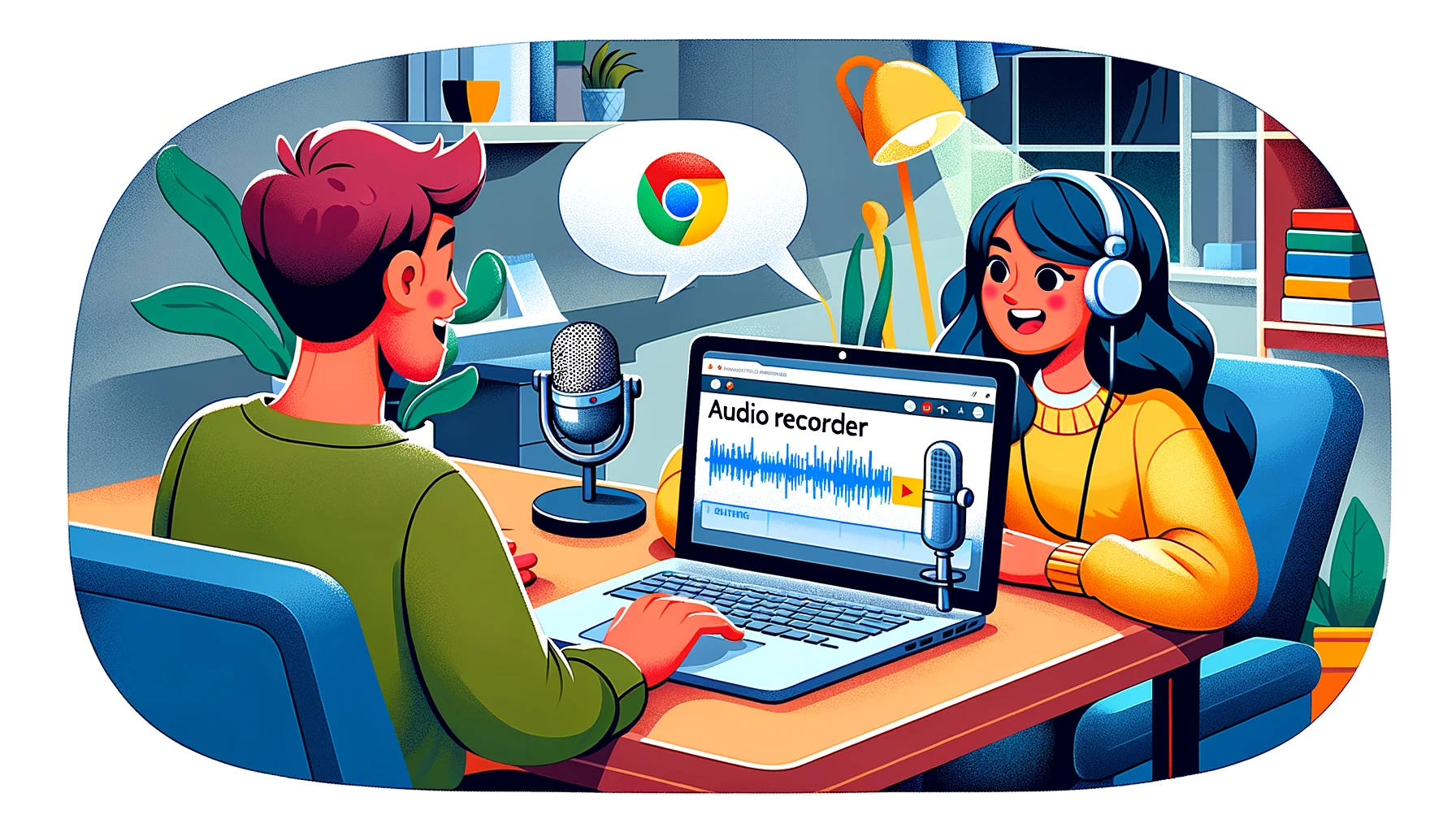
Record system audio, tab audio, and microphone directly in your browser. Online audio recorder captures everything playing on your computer with one click.

Loved by over 3 million people

Benefits of Online Audio Recorder

Unlike ChatGPT which can’t capture live sound, ScreenApp’s online recorder captures any sound from your computer directly in your browser. Record system output from meetings, podcasts, YouTube, streaming services, or any application without downloading software or dealing with complex setups.

Key features of our browser-based recording solution:

  • Capture internal sound from any source playing on your device
  • Record specific browser tabs while ignoring other sounds
  • Add microphone overlay for commentary and narration
  • Export to MP3, WAV, or OGG formats with customizable quality
  • No time limits on recordings - capture hours of content
  • Automatic cloud backup prevents loss of important recordings
  • AI-powered transcription generates searchable text from any recording

The browser-based recorder works seamlessly with Google Meet, Zoom, Microsoft Teams, and any meeting platform. Capture streaming content, online courses, webinars, and podcasts without complicated routing or virtual cables.

How to Record System Audio Online

Use our browser-based recording solution without installing software. The capture tool works directly in Chrome, Edge, and other Chromium browsers.

Recording process:

  1. Install extension - Add ScreenApp to your browser with one click from the Chrome Web Store
  2. Select source - Choose system output, specific tab, microphone, or combine multiple sources
  3. Configure quality - Set bitrate, sample rate, and file format for your needs
  4. Start capture - Begin recording with one click; status indicator shows active recording
  5. Stop and save - End recording when finished; files automatically save locally or upload to ScreenApp cloud

The PC recording solution captures high-quality sound without performance impact on your system. Whether you’re recording a two-hour webinar or a five-minute tutorial, the process remains simple and reliable.

Advanced Capture Features

Selective tab recording isolates sound from specific browser tabs without recording your entire system. Perfect for capturing clean recordings of meetings, podcasts, or streams while other applications run in the background.

Multi-source mixing combines microphone input with system output in real-time. Add your commentary to tutorials, react to content, or create podcast episodes with guests calling in through web platforms.

Smart silence detection automatically pauses recording during silent periods, reducing file size and making editing easier. Resume instantly when sound returns.

Background operation continues recording even when you minimize the browser or switch to other tasks. Never miss content because you needed to multitask.

Format optimization automatically adjusts settings based on content type. Speech recordings use optimized compression while music capture preserves full frequency range.

Who Uses System Audio Recorder

Professionals capture virtual meetings for reference and note-taking. Review important discussions without asking participants to repeat information or worry about missing details. Our AI transcription turns recordings into searchable text with timestamps and speaker identification.

Students preserve online lectures and courses for later review. Study complex material at your own pace with AI-generated transcripts and summaries. Search recordings for specific topics or keywords without scrubbing through hours of content.

Content creators capture material from web sources for podcasts, videos, and productions. Record interviews, sample sound effects, and gather music references for creative projects. Maintain quality and avoid compression artifacts from screen recording.

Researchers document online interviews, focus groups, and research sessions. Create searchable transcripts for qualitative analysis. Export data in formats compatible with analysis software like NVivo and Atlas.ti.

Musicians and producers sample streaming content, capture live sessions, and preserve online performances. Export high-quality WAV files for production use without quality loss.

Archivists preserve online events, presentations, and historical content before it disappears. Build searchable libraries of recorded material with automatic transcription and tagging.

Integration with ScreenApp Ecosystem

Enhance your recordings with complementary tools:

Comparison with Other Recording Solutions

FeatureScreenAppAudacityOBS StudioKrispCleanfeed
Browser-BasedPartial
No Installation
Tab-Specific Capture
AI Transcription
Cloud StorageLimited
Real-time EnhancementLimitedLimited
Mobile SupportLimitedLimited

Technical Specifications

Our recording engine delivers professional results:

  • Bitrate: Up to 320 kbps for maximum quality
  • Sample rate: 44.1 kHz or 48 kHz
  • Channels: Mono or stereo
  • Latency: Sub-50ms monitoring delay
  • File size: Automatic compression without quality loss
  • Duration: Unlimited recording length
  • Formats: MP3, WAV, OGG, FLAC

Privacy and Security

All recordings remain private and secure. Files save locally by default, with optional encrypted cloud storage. We never access, analyze, or share your recordings without explicit permission. Browser extension operates with minimal permissions, accessing only tab content during active recording sessions.

FAQ

What is a tab audio recorder?

A tab recorder captures sound from a specific browser tab without recording your entire screen or system. The ScreenApp extension isolates output from any Chrome tab for clean recordings of meetings, streams, or podcasts.

Is Chrome audio capture extension free?

Yes, the basic Chrome extension is free to download and use with unlimited recording time. Premium features like AI transcription, cloud storage, and advanced editing tools are available with a ScreenApp subscription.

Can I record audio from multiple Chrome tabs?

Yes, you can capture from multiple tab sources simultaneously. The extension records all browser output plus optional microphone input, or you can select specific tabs for isolated recording.

Does Chrome audio capture work with protected content?

Some streaming services use DRM protection that prevents capture at the browser level. The extension works with most web content including meetings, podcasts, educational videos, and unprotected streaming platforms.

What audio formats does Chrome audio capture support?

Chrome extension supports MP3 (universal compatibility), WAV (uncompressed, highest quality), OGG (open source, efficient), and FLAC (lossless compression). Choose your preferred format before starting or convert after capture.

Can I transcribe audio recorded with Chrome audio capture?

Yes, ScreenApp provides AI-powered transcription for all recordings. Get automatic transcripts with punctuation, speaker identification, and searchable text from your captured content. Transcripts sync with playback for easy reference.

How do I record internal audio on Mac?

Mac users can capture internal sound using the Chrome extension without additional software. Grant microphone permission in browser settings, select “Tab audio” or “System audio” as your source, and start recording.

Does recording affect browser performance?

The extension uses minimal system resources during recording. Most users experience no noticeable performance impact even during long recording sessions or while using resource-intensive web applications.

Can I edit recordings after capture?

Yes, upload recordings to ScreenApp for AI-powered editing. Remove filler words, generate captions, create clips, and enhance quality without using complex editing software.

What makes ScreenApp different from ChatGPT?

ChatGPT generates and analyzes text but cannot capture, record, or process real-time audio. ScreenApp specializes in capturing live sound from your browser, meetings, and streams with professional-quality recording tools.

FAQ

What is a tab audio recorder?

A tab recorder captures sound from a specific browser tab without recording your entire screen or system. The ScreenApp extension isolates output from any Chrome tab for clean recordings of meetings, streams, or podcasts.

Is Chrome audio capture extension free?

Yes, the basic Chrome extension is free to download and use with unlimited recording time. Premium features like AI transcription, cloud storage, and advanced editing tools are available with a ScreenApp subscription.

Can I record audio from multiple Chrome tabs?

Yes, you can capture from multiple tab sources simultaneously. The extension records all browser output plus optional microphone input, or you can select specific tabs for isolated recording.

Does Chrome audio capture work with protected content?

Some streaming services use DRM protection that prevents capture at the browser level. The extension works with most web content including meetings, podcasts, educational videos, and unprotected streaming platforms.

What audio formats does Chrome audio capture support?

Chrome extension supports MP3 (universal compatibility), WAV (uncompressed, highest quality), OGG (open source, efficient), and FLAC (lossless compression). Choose your preferred format before starting or convert after capture.

Can I transcribe audio recorded with Chrome audio capture?

Yes, ScreenApp provides AI-powered transcription for all recordings. Get automatic transcripts with punctuation, speaker identification, and searchable text from your captured content. Transcripts sync with playback for easy reference.

How do I record internal audio on Mac?

Mac users can capture internal sound using the Chrome extension without additional software. Grant microphone permission in browser settings, select "Tab audio" or "System audio" as your source, and start recording.

Does recording affect browser performance?

The extension uses minimal system resources during recording. Most users experience no noticeable performance impact even during long recording sessions or while using resource-intensive web applications.

Can I edit recordings after capture?

Yes, upload recordings to ScreenApp for AI-powered editing. Remove filler words, generate captions, create clips, and enhance quality without using complex editing software.

What makes ScreenApp different from ChatGPT?

ChatGPT generates and analyzes text but cannot capture, record, or process real-time audio. ScreenApp specializes in capturing live sound from your browser, meetings, and streams with professional-quality recording tools.

Real Results from Real Users

Aaron photo

Aaron

Project Manager

★★★★★

Our overall experience with ScreenApp has been nothing but pleasant! Their support is terrific, and ScreenApp is a great recording system.

JP photo

JP

Operations Manager

★★★★★

Finally, a screen recorder that doesn't slap watermarks on everything. The free plan gives me 45 minutes of AI processing monthly - that's enough for most of my training videos.

Trina photo

Trina

Founder

★★★★★

I was skeptical about another AI notetaker, but ScreenApp's generous free tier completely won me over. The quality is professional-grade, and the AI features actually work as advertised. Now I use it for all my client presentations and team demos.

Kelvin photo

Kelvin

Software Engineer

★★★★★

The desktop and mobile apps are fantastic. Recording meetings while I'm mobile has never been easier, and the dictation feature is a huge time-saver.

Millie photo

Millie

Director

★★★★★

Our team was drowning in client feedback until we found ScreenApp. Now we record every presentation and client call, and the AI summaries are spot-on.

Tanmay photo

Tanmay

Marketing Guru

★★★★★

Makes recording and sharing guides effortless. I love how I can capture my screen and instantly turn it into step-by-step guides in any format I need. Smart, simple, and a brilliant use of AI.

Sav photo

Sav

Project Manager

★★★★★

Users consistently praise our web-based platform that requires no installation. Start recording in seconds, not minutes.

Nate photo

Nate

Video Creator

★★★★★

The ability to automatically transcribe and summarize recordings is a major time-saver, turning video content into searchable, useful data.

User
User
User
Join 2,147,483+ users

Ready to boost your productivity?

Try Online Audio Recorder and 300+ other AI-powered features for free.

Start Free →

Start using in 60 seconds • No credit card required