


Transcribe a Google Drive Video From Its Link
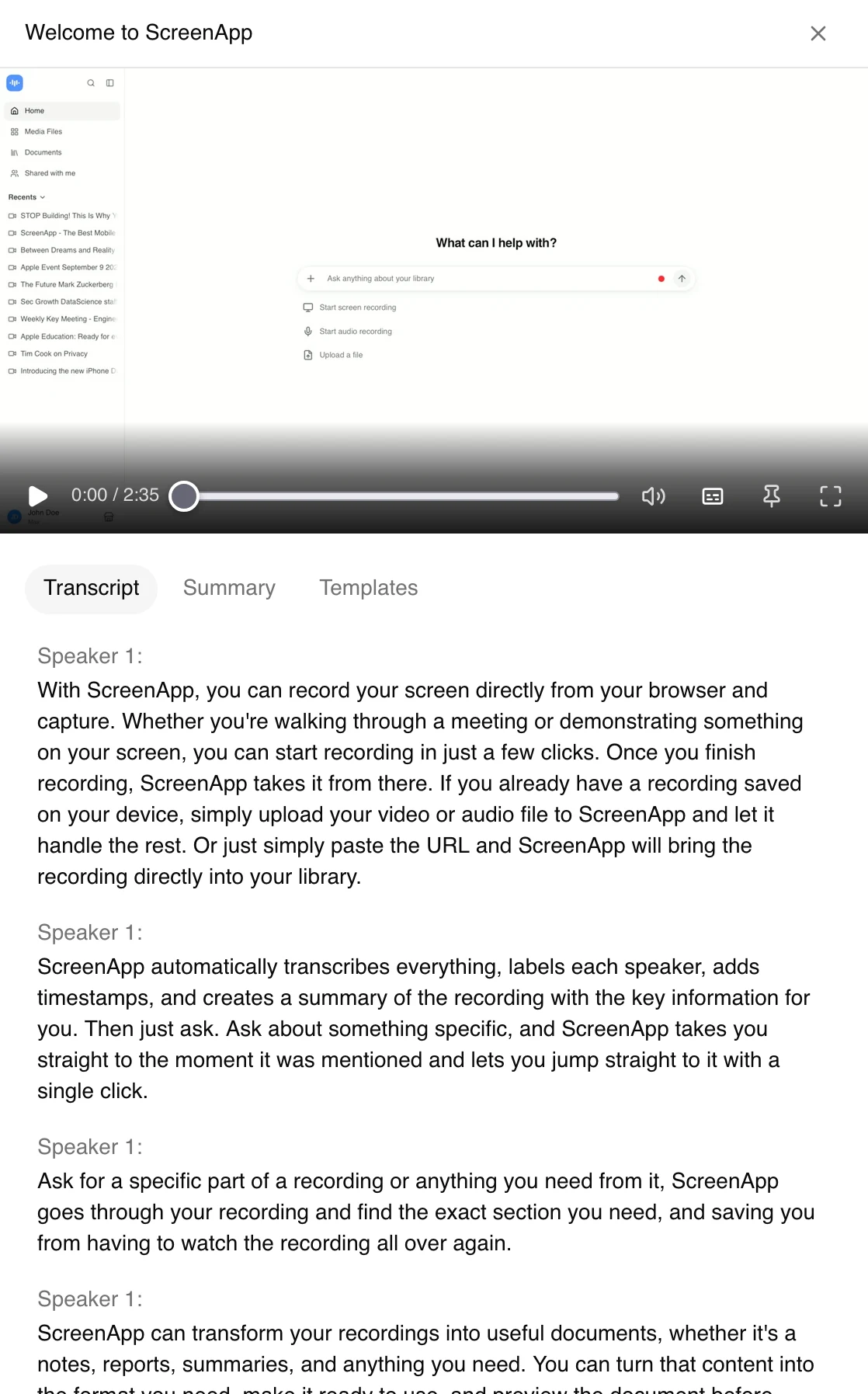
Drop a shared Google Drive link into the box above to turn the Google Drive video to transcript, or to plain text. ScreenApp pulls in the video and produces the transcript, complete with speaker identification and timestamps. You don’t connect a Drive account, and there’s nothing to download first. One thing has to be true, though: the file must be open to anyone with the link.
Google Drive Video to Transcript in Three Steps
Share the File
In Drive, set General access to Anyone with the link.
Copy the Link
Grab the link to the file itself, not the folder it sits in.
Paste It Above
Hit Transcribe and the video comes in.
Need the file to stay private? Download it from Drive and upload it instead. Steps are below.
- Open the file’s sharing settings. In Drive, hit Share on the video and change General access to “Anyone with the link”.
- Copy the link. Grab the link that points to the video file itself.
- Paste it into the box above and click Transcribe. ScreenApp brings in the video, separates the audio and writes the transcript.
- Read, ask and export. Compare the transcript with the video, ask it questions with AI chat with any recording, then copy the text or export it as PDF, DOCX, TXT, SRT and VTT.
Which Google Drive Links Work
A Drive link only imports if the file’s sharing allows it. These cards come from ScreenApp’s own import results for Google Drive links in October and November 2026, and from how Drive sharing works. They’re the quickest drive link to transcript check:
A File Shared with Anyone with the Link
Yes
Paste the link as it is
A File Restricted to Specific People
No, Google refuses it
Download the file, then upload it
A Folder Link
No
Copy each file's link, or download the folder and upload the files
Google Is Limiting Downloads of the File
Sometimes
Wait and try again later
Restricted Work Files: Download, Then Upload
Plenty of company files in Google Workspace can’t be opened to anyone with the link, and that setting is correct for them. In that case, download the video from Drive and drop it onto the Video tab above. ScreenApp takes MP4, M4V, MOV, AVI, WEBM, MKV, FLV, TS, MTS, M2TS, 3GP, 3GPP, 3G2, WMV, ASF, VOB, OGV, RM, RMVB, MPG, MPEG, M2V, F4V, MXF.
Anything you upload is encrypted in transit and kept with AES-256. ScreenApp is SOC 2 Type 2 audited, and recordings are not used to train AI models. Our security controls live on the trust center.
More Than Just the Words
Getting the Drive video into ScreenApp is just the beginning.
- Transcript with speaker identification and timestamps
- AI notes listing action items with an owner and deadline, and decisions listed separately
- AI chat with any recording, so you ask instead of rewatching
- Free plan: 2 transcriptions of recordings up to 45 minutes each
How to Get the Transcript Google Drive Makes
Drive comes with its own transcript, and it costs nothing for all Google Workspace customers, Google Workspace Individual subscribers, and users with personal Google accounts. You only see it after captions exist on the video: it works after generating automatic captions on the video first, then opening the transcript from the video's settings. Captions get generated automatically in 29 languages.
- Open the video in Google Drive.
- Check it has captions. Switch captions on in the player. No captions means Drive hasn’t generated them yet.
- Open the transcript through the video’s settings, the gear icon on the player.
Once it’s open, you can view and search it in a sidebar next to the video, which highlights the words being spoken. If your goal is simply reading along while the video plays, that usually does the job.
How to Download a Transcript From a Google Drive Video
Drive’s transcript ends here. There’s no documented download or copy button on that panel, as far as Google’s documentation goes. What Google does document is caption files: anyone who can edit the video can upload, download and edit its captions. A caption file holds the words plus their timings, and editors can download it. So if you were hoping for a Google Drive transcript downloader built into the player, there isn’t a documented one.
Not an editor? Or you need the text split into speakers and paragraphs? Paste the video’s link into ScreenApp instead. You can copy the whole transcript from one page, or export it as PDF, DOCX, TXT, SRT and VTT.
When Drive Shows No Transcript
Most of the time, the video simply doesn’t have captions yet. Work accounts hit a second blocker: a Google Workspace admin can turn automatic captions off or make you request them. Automatic captions also stop at 29 languages, so a recording in another language gets no automatic captions. ScreenApp handles 100+ languages; see the full language list.
Google Drive Transcript vs ScreenApp
ScreenApp
- Works with Your Drive File
- Paste a shared link
- Free Plan
- 2 transcriptions, up to 45 min each
- Speaker Labels
- speaker identification
- AI Notes and Chat
- AI chat with any recording; 10 AI chats a month free
- Export
- PDF, DOCX, TXT, SRT and VTT
- Languages
- 100+
- Paid Plan
- $19 a month billed annually
Google Drive (Built In)
- Works with Your Drive File
- Built in, after generating automatic captions on the video first, then opening the transcript from the video's settings
- Free Plan
- Free for all Google Workspace customers, Google Workspace Individual subscribers, and users with personal Google accounts
- Speaker Labels
- Not stated
- AI Notes and Chat
- Gemini in Drive: summaries and answers about a video's content, in English only, on an eligible Google Workspace or Google AI plan
- Export
- Caption files, for anyone who can edit the video
- Languages
- 29 for automatic captions
- Paid Plan
- Free
Otter.ai
- Works with Your Drive File
- Export only: syncing transcripts and meeting content to Google Drive
- Free Plan
- 300 min a month
- Speaker Labels
- On Basic, the free plan
- AI Notes and Chat
- AI Chat within and across meetings; 20 chats a month free
- Export
- mp3 and txt on the free plan, plus pdf, docx and srt from Pro, with bulk export from Business
- Languages
- 6
- Paid Plan
- $8.33 a month billed annually
HappyScribe
- Works with Your Drive File
- Imports from YouTube, Vimeo, Google Drive, Box and Dropbox
- Free Plan
- 45 min per recording
- Speaker Labels
- automatic speaker detection
- AI Notes and Chat
- AI chat on 3 files a month free
- Export
- Free plan: DOCX, TXT, SRT and MP4 (watermarked)
- Languages
- 60+
- Paid Plan
- $8.50 a month billed annually
Drive’s built-in transcript wins when reading along is all you need. Captions have to exist before it shows up, and it stays inside Drive. Gemini in Drive adds summaries and answers about a video's content, in English only, on an eligible Google Workspace or Google AI plan.
Otter hooks into Zoom, Microsoft Teams, and Google Meet, and its Drive integration runs in the opposite direction: syncing transcripts and meeting content to Google Drive. If the video already lives in Drive, you have to download it and upload the file to Otter. HappyScribe pulls files from YouTube, Vimeo, Google Drive, Box and Dropbox, close to how ScreenApp works when you paste a link, with 45 minutes per recording on its free plan.
Sometimes you want the highlights rather than every word. The Google Drive video summarizer takes the same video and returns a summary with the decisions called out.
Transcribe a Folder of Google Drive Videos
ScreenApp doesn’t sync with a Drive folder, and it doesn’t watch for new files. For a folder of recordings, download the folder from Drive, then upload the videos in one go (bulk upload of multiple files).
A whole folder uses up the free plan fast, since it covers 2 transcriptions of recordings up to 45 minutes each. Pro covers 50 transcriptions a month, and the yearly plan starts with a 7-day trial. Card required.
Who Transcribes Google Drive Videos
Most people who look for a gdrive video transcript fall into one of three groups. Video and marketing teams fill shared Drive folders with raw footage, interviews, webinars and demos. A transcript means an editor can track down a quote, cut a clip or draft the blog post without sitting through the whole file again.
Researchers and trainers store interviews and sessions in Drive. The transcript lets them search for a theme, pull exact quotes, and hand people a text version to read at their own pace.
Google Meet teams land here as well, since Meet saves recordings to the organizer's Google Drive. Pasting each recording’s link does work. The Google Meet AI notetaker skips the Drive step and gives you the transcript and notes directly.
Accuracy depends on the audio. Clear audio with one speaker at a time transcribes best. Several people talking over each other, or a mic that sits too far away, leaves more gaps. See how we measure accuracy.
Want to type with your voice in Google Docs instead? That’s a separate tool. Voice typing needs a live microphone, not a saved file. Our guide to speech to text in Google Docs covers it.